
Do you ever wonder if you're moving enough each day? Google Fit makes it easy to check your progress and see every move you make. It keeps an eye on your steps, heart points, and move minutes like a friendly coach.
The visuals are clear and the summaries are simple to read, so you can quickly see how active you've been. This blog post explains how Google Fit keeps you on track and helps you feel better with a fun, straightforward approach.
Give it a try and discover how a little bit of tracking can turn everyday movement into big steps toward a healthier life.
Google Fit Activity Tracking: Move Better Today
Google Fit is a fun and friendly app you can use on Android and iOS. It works like a virtual coach for anyone who wants to live a healthier, more active life. The app keeps things simple by tracking basic things like steps, heart points (a simple way to count your heart-friendly activities), and move minutes. Think of it as a gentle reminder to get up and move throughout your day.
When you open the Home screen, you can see easy-to-read summaries of your daily and weekly progress. It shows you the number of steps you’ve taken, heart points you’ve earned, calories burned, miles traveled, and the minutes you’ve moved. Simple visuals like progress rings and clear graphs help you check your activity trends without any fuss. Plus, the Journal tab keeps a record of your day's activities by collecting automatic entries from your phone or connected wearables along with any you add manually by tapping the plus (+) icon.
In the Profile and Browse sections, you can set your own goals and adjust your daily targets like steps or heart points. The Profile tab lets you update things about yourself, like your weight, height, and even your bedtime, so the app fits right into your daily routine. Then, the Browse section offers extra health insights in a simple way without overwhelming you. Essentially, Google Fit focuses on clarity and ease of use, helping you feel great about moving more each day.
Setting Up Google Fit for Activity Tracking
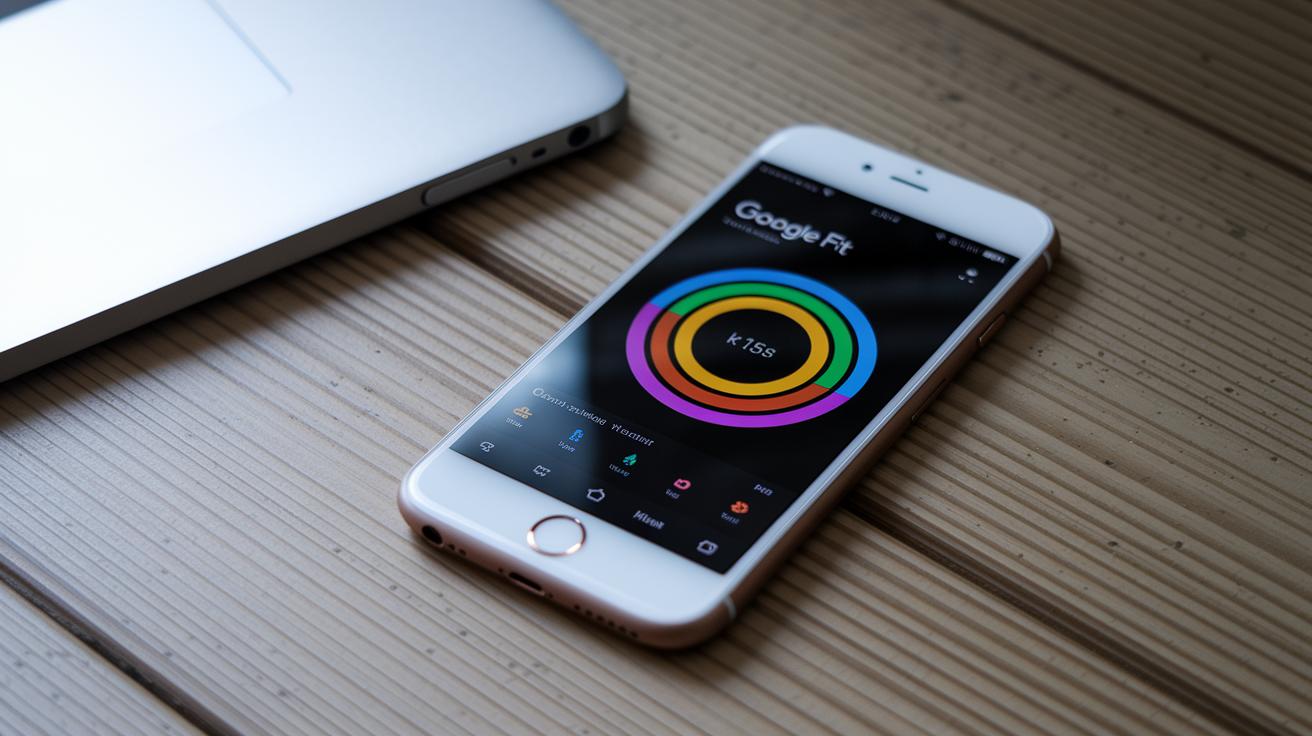
Download Google Fit from the Google Play Store or Apple App Store and get started on your journey to track your activity. When you open the app for the first time, a friendly setup wizard welcomes you and asks you to sign in with your Google account. It then asks for permission to use your sensors and location so the app can accurately record your movements. This quick process turns your phone into a personal activity tracker and even a little virtual coach right from the start.
- Install the app from the Google Play Store or Apple App Store
- Sign in with your Google account
- Allow access for sensors and location tracking
- Enter your personal details like weight, height, and bedtime
- Set your daily goals for Steps and Heart Points
Granting access to your location and sensors is key because it helps Google Fit capture every bit of your movement. With these permissions, the app uses your phone’s built-in sensors or connected devices to track every step, heart-friendly activity, and minute of movement. The setup is fast and simple, so you can soon start enjoying a healthier lifestyle.
Google Fit Activity Tracking Metrics and Data Visualization
On the Home screen, Google Fit brings your health stats to life with vibrant visuals like progress rings and smooth line graphs. You can easily see your daily steps, heart-friendly activities (we call these Heart Points), move minutes, calories burned, and miles traveled. The Profile tab adds week-to-week charts, making it simple to check your progress without having to review details over and over. Ever notice how a quick 10-minute brisk walk can really boost your heart health?
| Metric | Definition | Display Location |
|---|---|---|
| Steps | The total number of steps taken. | Home screen summary |
| Heart Points | A count of heart-friendly activities earned through movement. | Home screen summary |
| Move Minutes | Minutes spent in physical activities. | Home screen summary |
| Calories Burned | Energy expended during activity. | Home screen summary |
| Miles Traveled | Distance covered by walking or running. | Home screen summary |
By using these clear visuals, Google Fit shows you not only how you’re performing today but also hints at trends over time. This friendly setup makes it easy to tweak your daily routine, celebrate every little win, and gradually increase your activity levels.
Google Fit Activity Tracking Device Integration
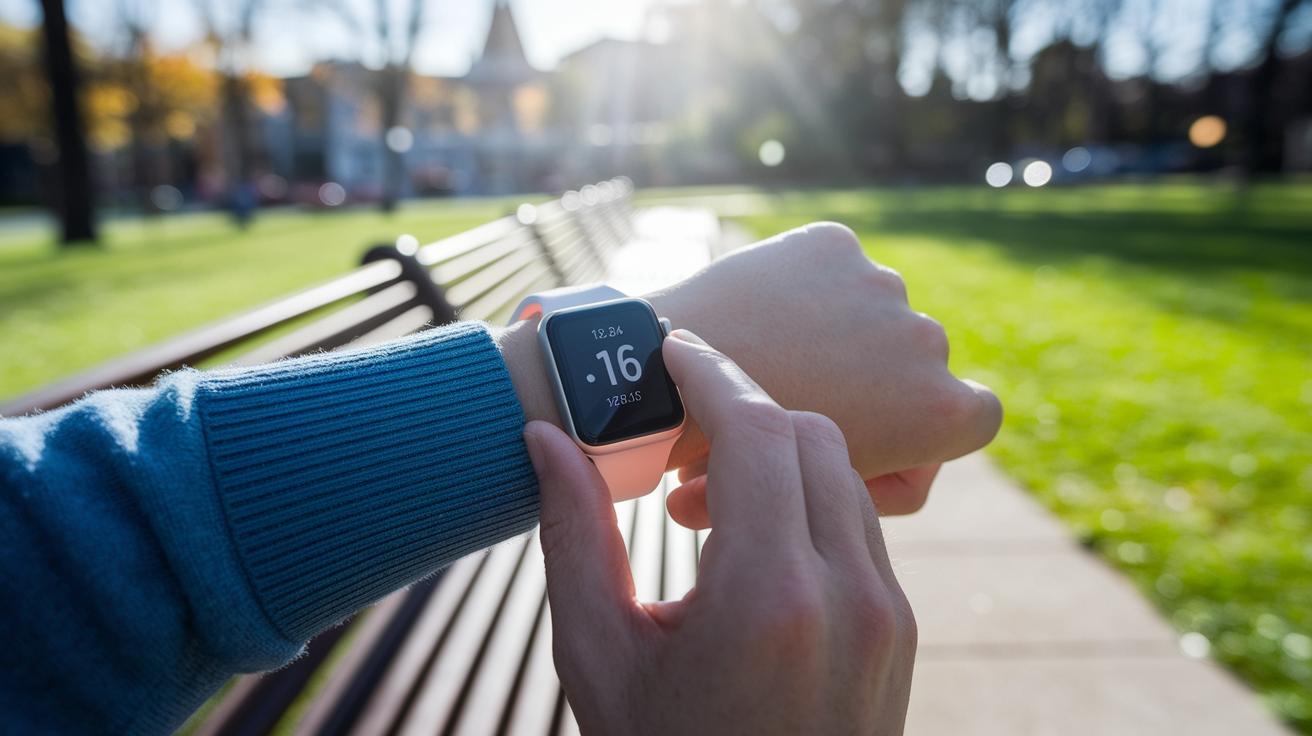
Google Fit syncs automatically with popular wearable devices like your Wear OS smartwatch or Apple Watch. That means your activity data, like steps, move minutes, and heart-friendly exercises, is logged right when you do them, without you needing to lift a finger. It’s like your smartwatch is quietly turning every step into a clear snapshot of your day.
Google Fit also teams up with other health apps via Health Connect. It brings together data from devices like Fitbit and various Android apps so all your activity info lives in one spot. Plus, it links with Google Calendar so you can set up regular workouts. Imagine scheduling a cozy evening walk, and the app picks it up automatically, it really makes planning simple.
Although Google Fit works with many Wear OS devices and some non-Wear OS trackers, the best experience happens when you use it on your smartphone. Pairing your phone with your wearable means you get accurate data thanks to regular firmware updates, the right sensor permissions, and optimal placement. If you’re curious about even more ways to stay connected, check out remote health monitoring services. This smart blend of seamless integration and handy tips makes it easier to track your progress and stay inspired every day.
Google Fit Activity Tracking Journal and Manual Logging
Google Fit's Journal tab is like your personal fitness diary that automatically tracks what you do every day. It gathers info from your phone's sensors or any devices you sync, recording details like the date, duration, calories burned, and the heart points you earn. This automatic log makes it super easy to look back on your workout trends without any extra effort. Whether you went for a quick walk or had a long workout session, the Journal organizes your exercise data in a clear, easy-to-read way so you know exactly how you're progressing.
If you want to add an entry yourself, just tap the plus (+) icon in the Journal tab. This lets you choose the type of activity, set how long you did it, and note the intensity of your session. And if your workout isn’t picked up automatically, you can manually record it to complete your activity history. This way, you'll always have a full picture of your fitness journey, showing all your efforts and achievements.
Google Fit Activity Tracking Accuracy and Sync Troubleshooting
Google Fit works best when you let the app use your phone's sensors, place your device correctly, and keep the software up-to-date. When you allow it to track your movements, it records every step you take. The right device placement helps the sensors pick up accurate readings, and even using simple settings like Dark Mode in your Profile can save battery on OLED screens so your device stays powered and collects all your data.
Sometimes you might run into syncing issues if not all permissions are granted, your app isn’t updated, or the Bluetooth connection is weak. If your health data looks off, first check that all sensor permissions are turned on and that you’re using the latest version of the app. A quick cache clear or re-pairing your devices can also fix delays or missing entries, keeping your tracking smooth and reliable.
A neat trick to ensure accuracy is to walk a known distance and then compare the steps counted by Google Fit. This simple test lets you verify the step counter and adjust your device’s placement or sensor settings if needed. Regular software updates and checking your Bluetooth connection can help prevent syncing errors too. These small steps can boost your data’s reliability, so you feel confident that every move you make is recorded correctly.
Final Words
In the action, this post broke down google fit activity tracking and its smart features in clear terms. It discussed setting up the app, syncing wearable devices, and checking key health metrics like Move Minutes and Heart Points. We also looked at how the Journal helps log activities and offered tips on calibration to keep data reliable. These insights are meant to help you manage daily routines and make smart decisions about your health. Embrace this guidance and enjoy the benefits of a more data-informed lifestyle.
FAQ
Q: What is the Google Fit app?
A: The Google Fit app is a fitness tool that tracks steps, heart points, move minutes, and calories burned. It offers daily and weekly summaries on Android and iOS and integrates with various wearables.
Q: How does Google Fit work on iOS devices like the iPhone?
A: Google Fit on iOS, including the iPhone, uses built-in sensors and connected wearables to record daily steps, workouts, and other metrics. It presents data through a simple interface to support a healthy lifestyle.
Q: How does Google Fit work on Android devices?
A: Google Fit for Android relies on phone sensors and compatible wearables to monitor your steps, heart points, and move minutes. It provides visual feedback, such as daily summaries and graphs, to help track your progress.
Q: How does a Google Fit watch track my fitness?
A: A Google Fit watch uses integrated sensors to measure movement, heart rate, and steps. It syncs with the Google Fit app, offering real-time updates and clear progress tracking over time.
Q: How do I download the Google Fit app?
A: Downloading Google Fit is done via the Google Play Store on Android and the Apple App Store on iOS. After installation, you’ll sign in and allow permissions to accurately track your activity.
Q: How does the Google Fit step counter work?
A: The Google Fit step counter logs your daily steps using sensor data from your phone or connected devices. It displays totals in daily and weekly summaries, making it easy to track your fitness milestones.
Q: How does Google Fit track activity?
A: Google Fit tracks activity by collecting sensor data from your phone and paired devices. It records steps, move minutes, calories, and heart points, then displays this data using simple progress rings and charts.
Q: Is Google Fit being discontinued?
A: Google Fit is currently an active app with no official plans for discontinuation. It continues to update and support users with a reliable way to track health and activity data.
Q: How do I turn on activity detection in Google Fit?
A: Turning on activity detection in Google Fit involves giving the app permissions for sensors and location in your device settings, then enabling the tracking option within the app for accurate recording of your movements.
Q: Why might Google Fit not track my activity?
A: If Google Fit isn’t tracking your activity, make sure sensor permissions are granted, your device is properly placed, and Bluetooth connections are strong. Software updates may also be needed to improve tracking accuracy.

